Follow Object Tutorial
This tutorial provides step-by-step instructions for using Latent Assisted Label to track a specific object through a video using the Follow Object operation. By the end of this tutorial, you will have loaded a video dataset, detected objects in the frames, selected an object to track, and tracked it through the video.
1. Load dataset
For this tutorial, we're going to use the walking video, which is available on the Sample datasets page. If you're running Latent Assisted Label via a Docker container, you can download the video directly to the working directory you mounted when you started the container:
curl -O https://docs.latentai.io/label/assets/datasets/walking.mp4
Now let's create a directory for the video and move it there:
mkdir -p walking && mv walking.mp4 walking/
We can load the video as a dataset using the Create Dataset from Directory operator.
Create Dataset from Directory
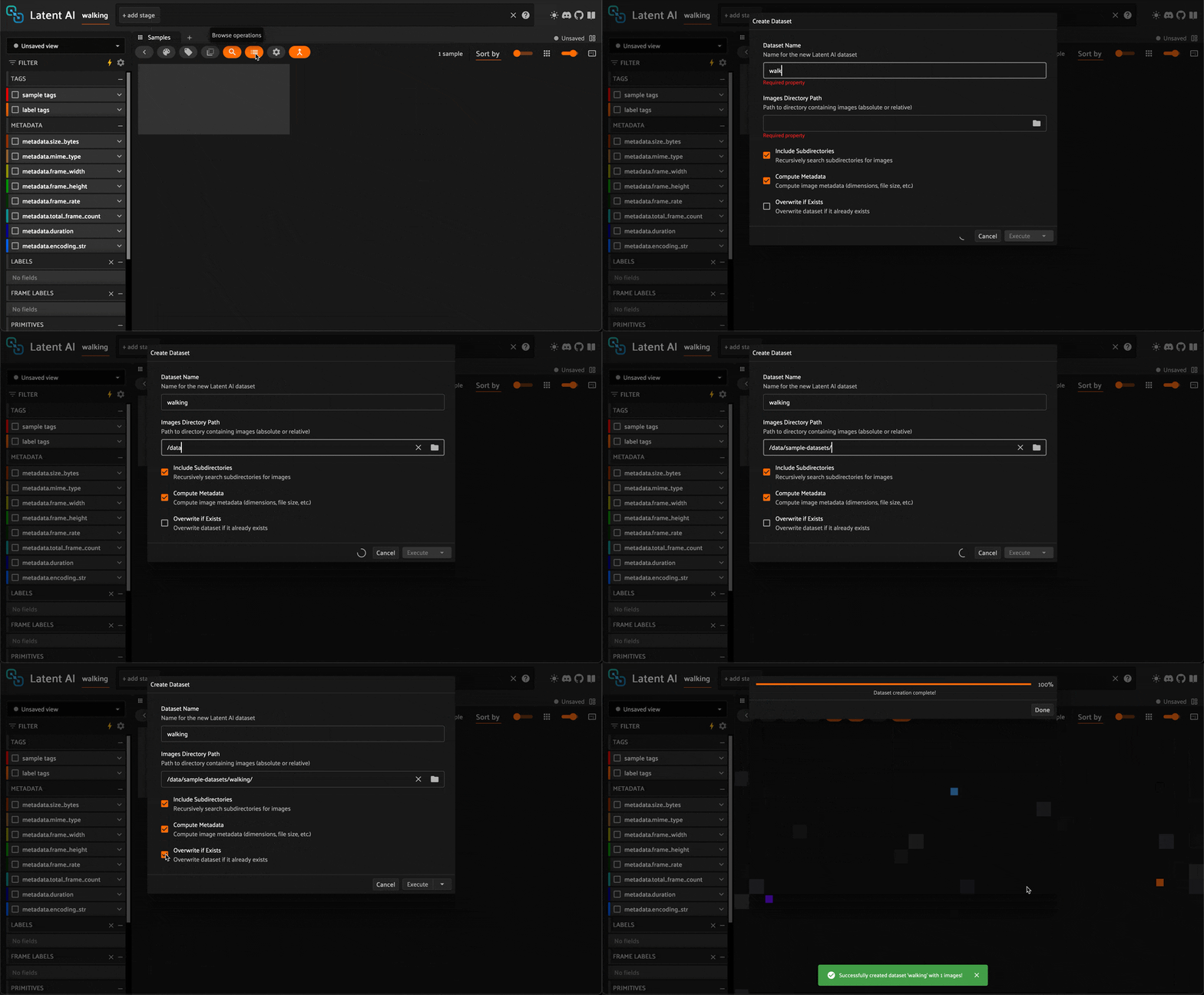
Provide a relative or absolute path to the dataset directory and click Execute. If you downloaded the video into the directory where you spun up the container, it should be located at /data/walking/.
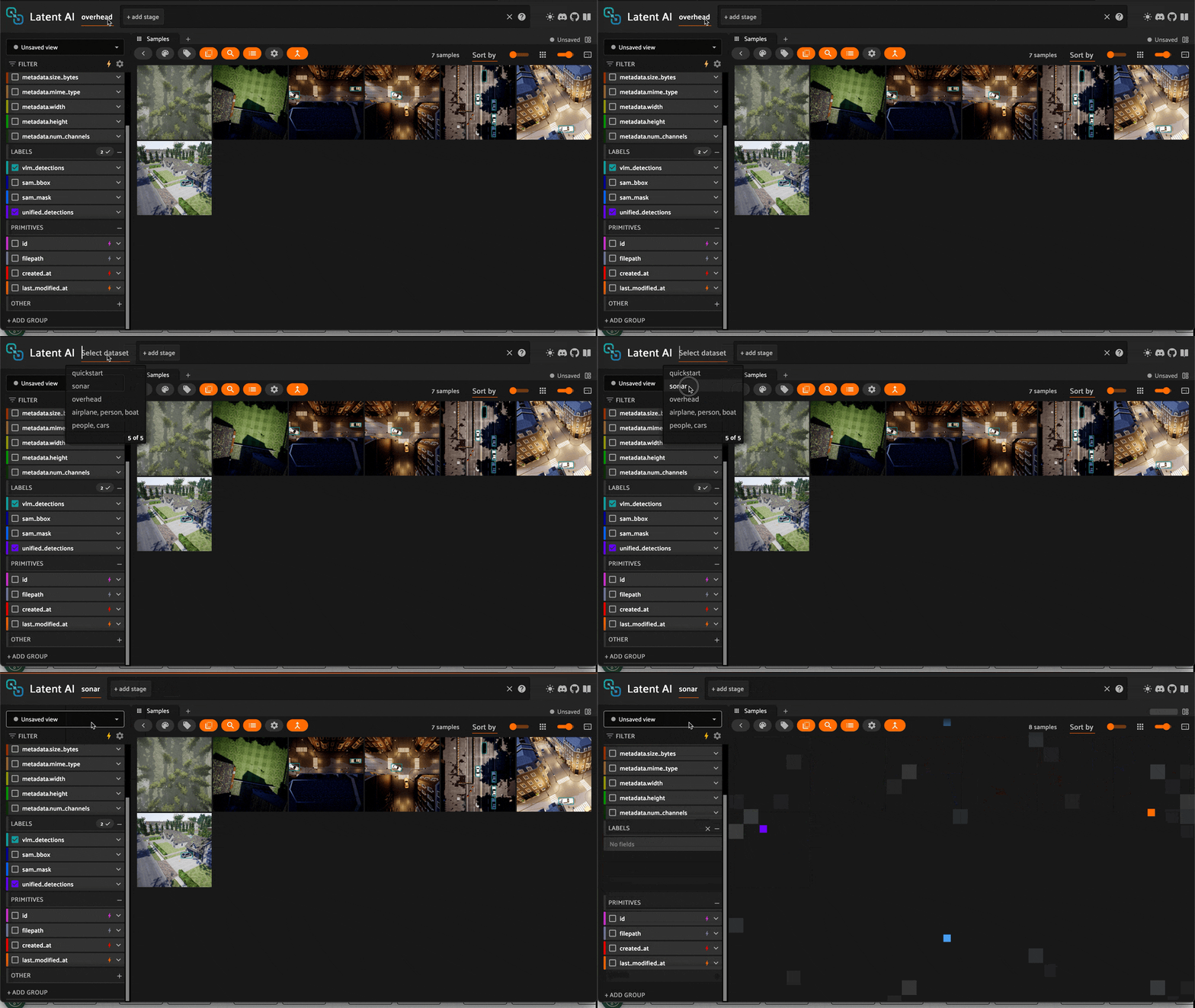
Once you've loaded a dataset, it will always be available to load in the Select Dataset menu.
Load Dataset
2. Run Unified Detection
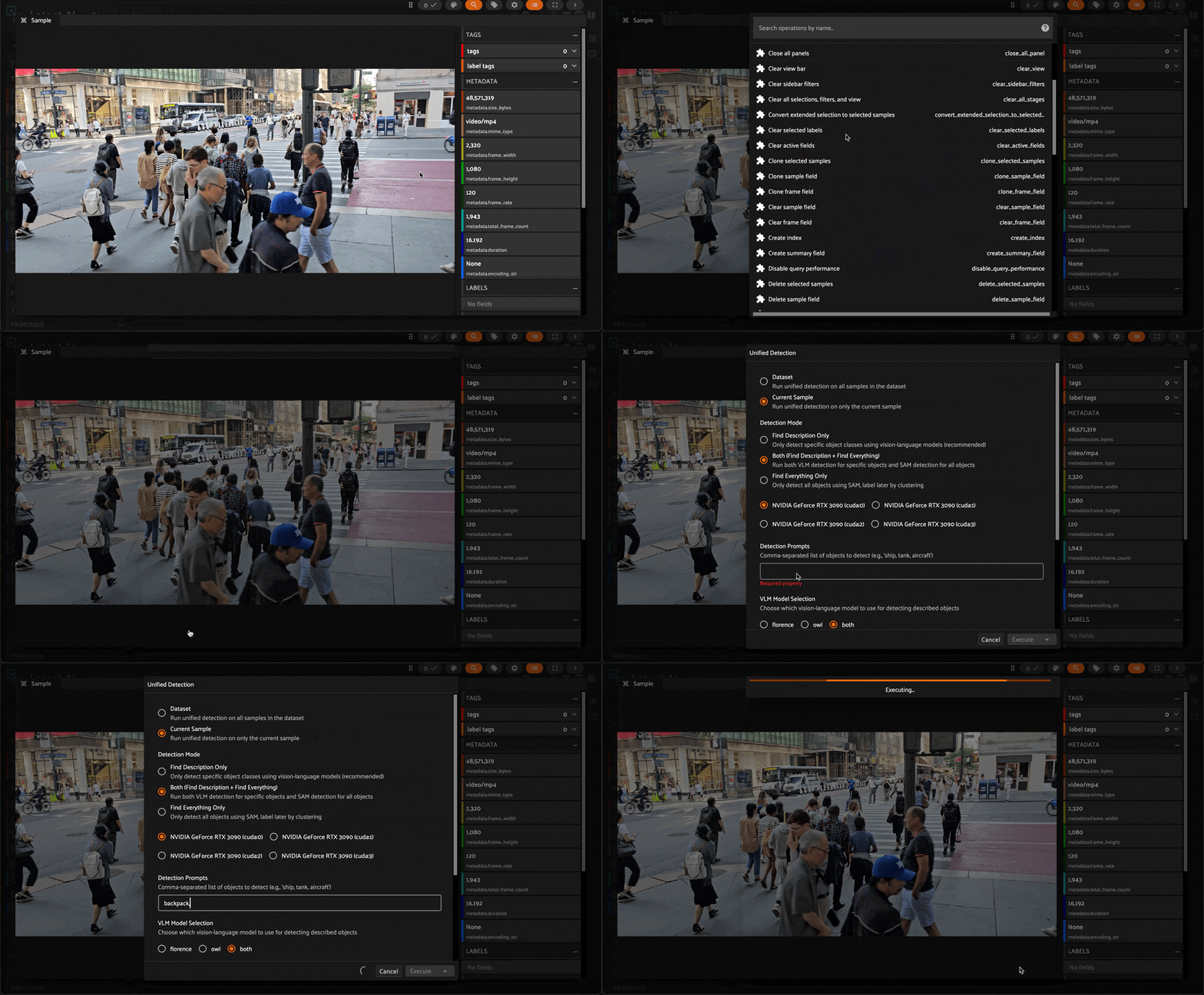
Select the Unified Detection operator in the Browse Operations menu.
Now we need to select the detection mode. For this tutorial, we'll select Both, which will detect the classes we prompt as well as all visible objects.
Find Description– detect only prompted classes using a Vision Language Model (VLM).Find Everything– detect all visible objects using Segment Anything Model (SAM).Both (Find Description + Find Everything)– run both modes and merge results (recommended for general use).
Let's enter the following prompts to guide Find Description:
backpack, person
If needed, select your GPU device, then click Execute.
Execute Unified Detection
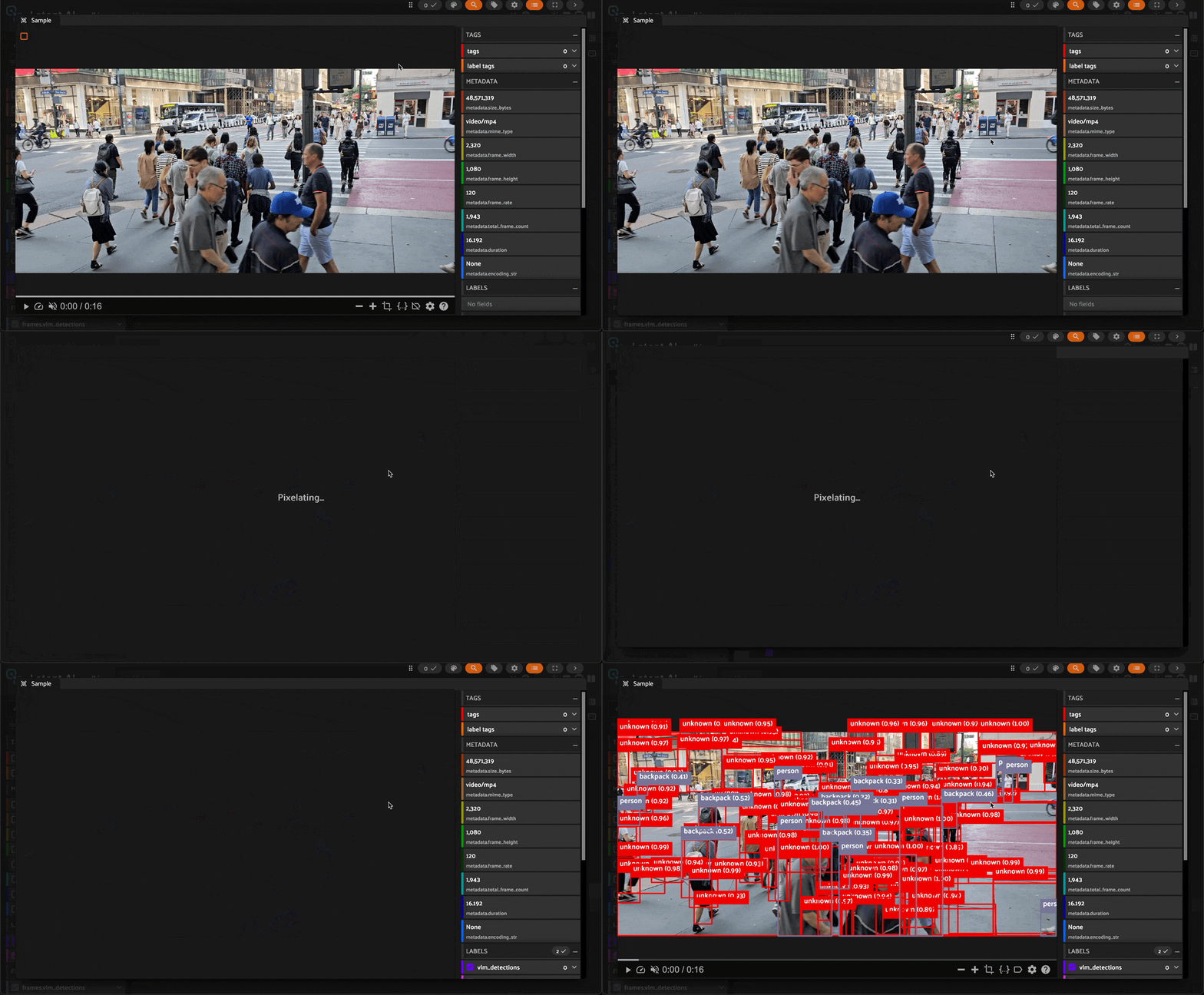
After the detection completes, refresh the webpage to see the bounding boxes overlaid on the first frame.
View bounding boxes
3. Select object to follow
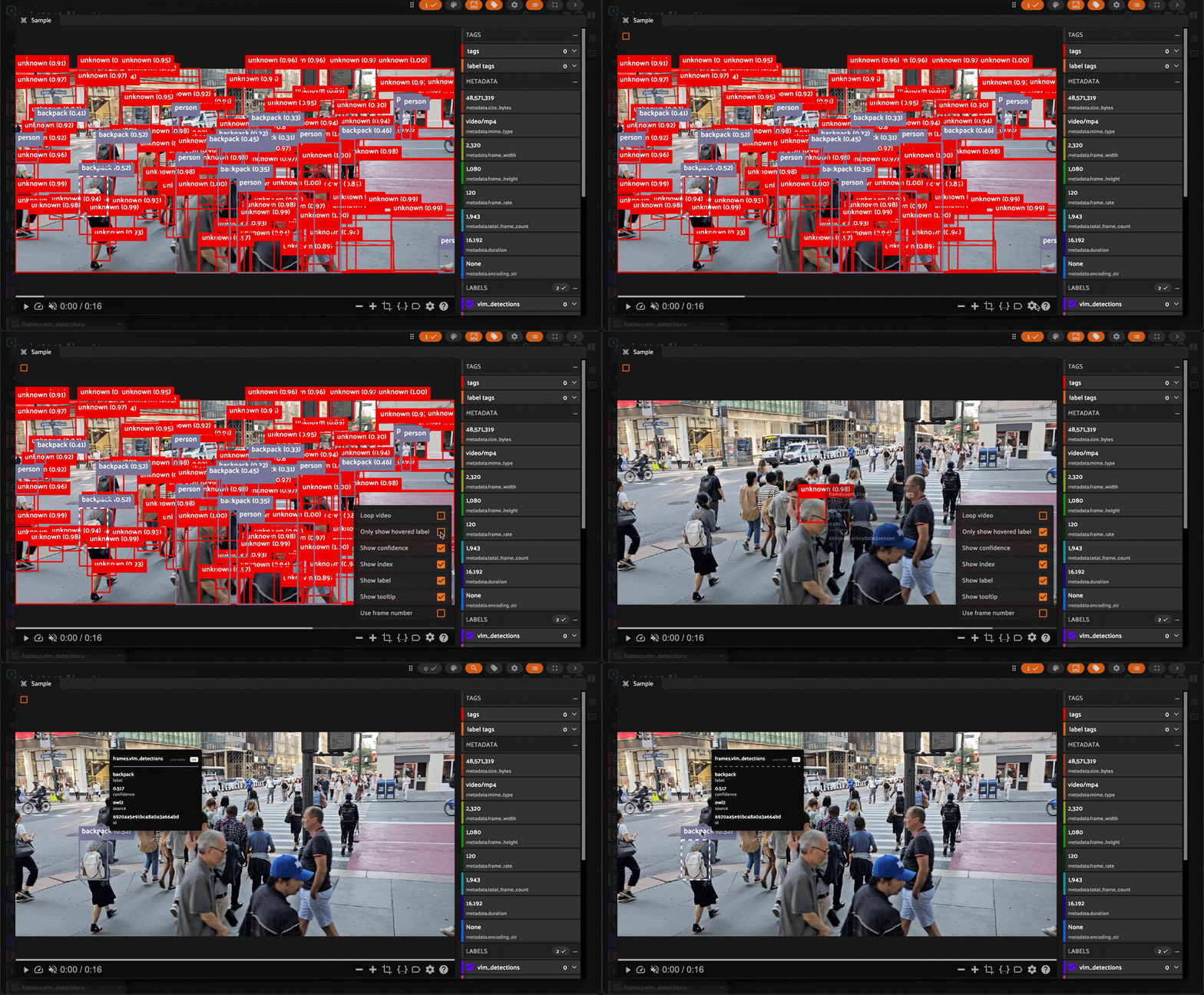
Use the preferences tool (the gear icon) to select Only show hovered label. Now you can select the object you wish to track. For this video, let's select the white backpack in the left lower quadrant.
Select object to follow
4. Execute Follow Object
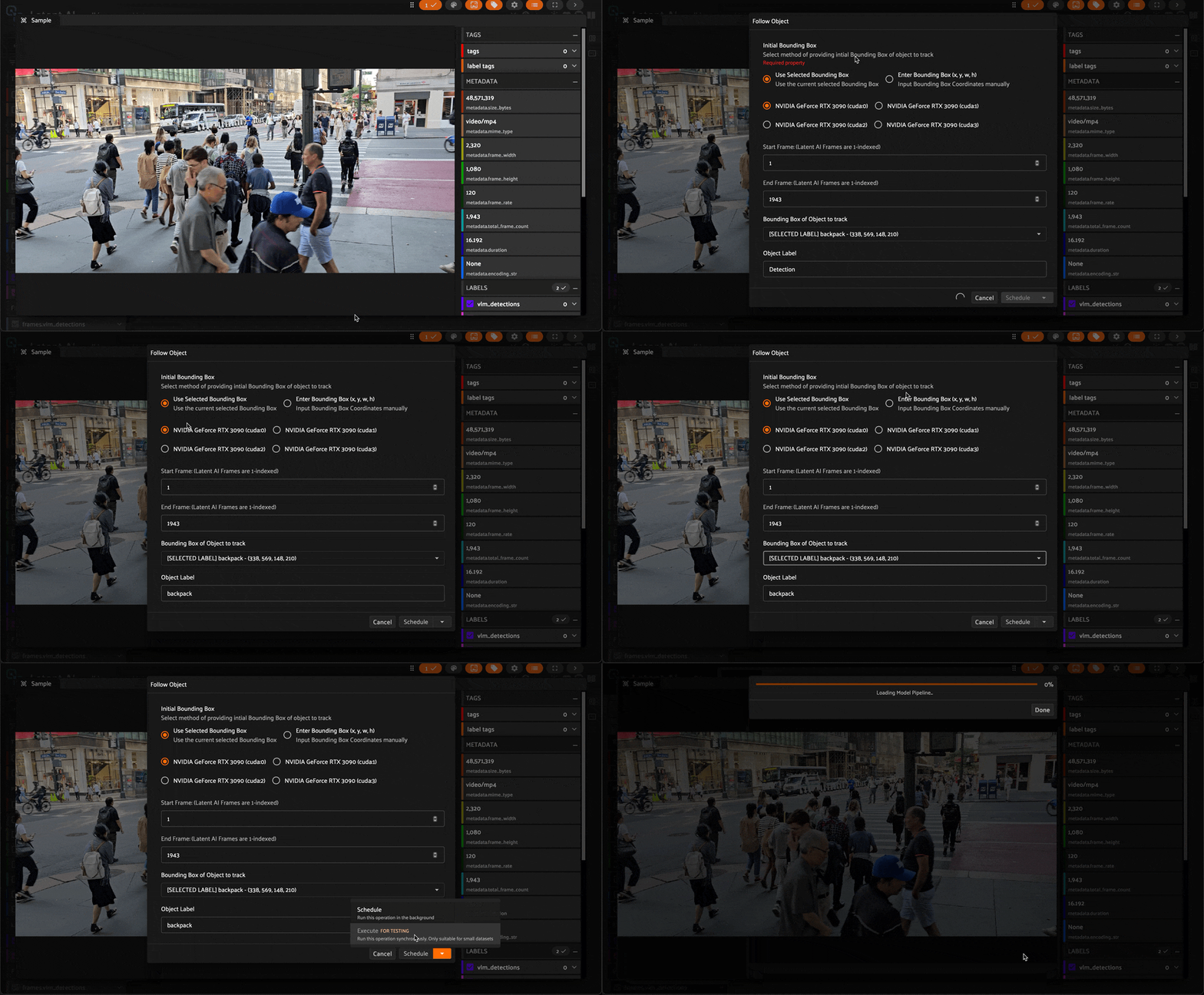
Select the Follow Object operator in the Browse Operations menu.
For this tutorial, the default settings should be correct. We want to Use Selected Bounding Box; we want the Start Frame to be 1; the Bounding Box of Object to track should show [SELECTED LABEL]; the Object Label should be backpack.
Once you've ensured those settings are applied correctly, click Execute.
Execute Follow Object
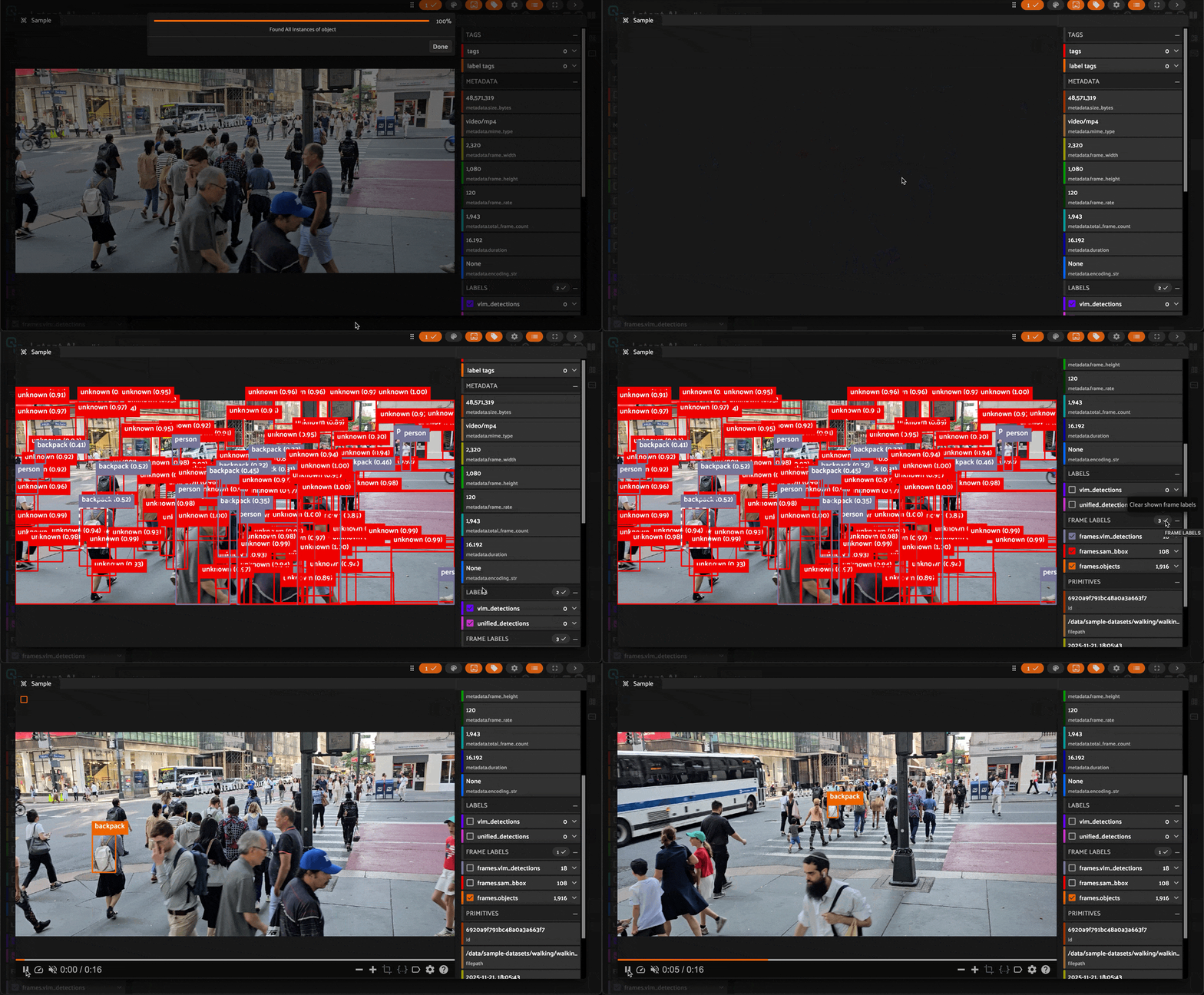
Once the model has finished running, play the video to confirm the selected object has been tracked across every frame of the video.
Note
If you're either seeing too many bounding boxes or none at all, you may need to refresh the browser window and/or unselect every label and frame except for frames.objects.
Confirm Follow Object results
That's it! You've successfully loaded a video as a dataset, detected objects in the first frame, selected an object to track, and tracked that object across every other frame of the video.